

First Login to the E-return without smart card Application..
STEP 1:Download Sales/Purchase List from the link "Download Excel Sheet" on Side panel.
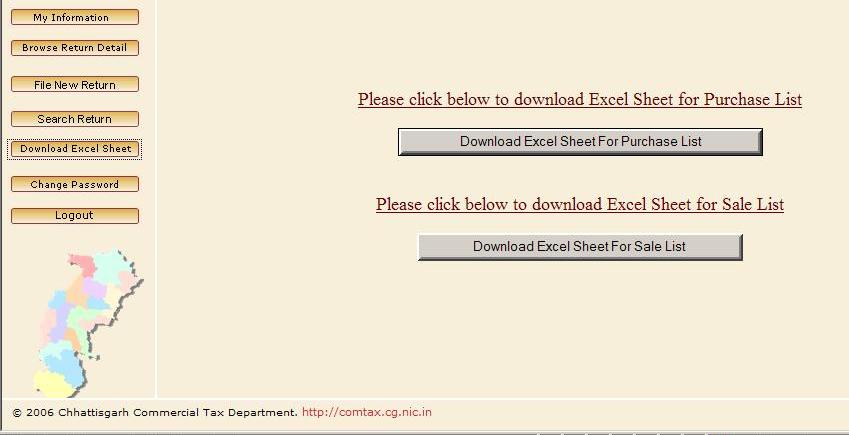
STEP 2:Unzip the Sales/purchase List.
STEP 3:Double Click to Open Excel Sheet.
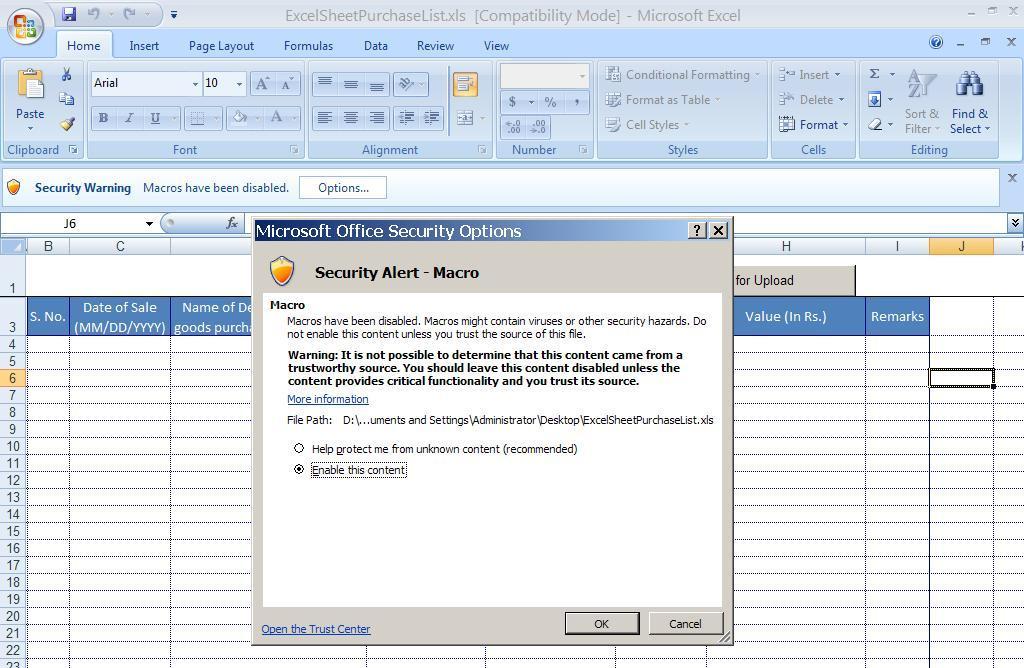
STEP 4:See "Security Warning" Macros has been disabled. Options... Button i.Click Options Button.
ii.Check Radio Button "Enable this content"
iii.Now Clock "Ok" Button
STEP 5:Don't leave any row or any coloumn in between..i.e. if you are filling 1st row, all columns of 1st row must be filled.
STEP 6:Dont leave any row blank in between. ex. you filled 4th row n then filled 6th row..and leave 5th row blank..this is wrong practice..You must fill all row in entirety and fill next row and next row.
STEP 7:After All rows make sure no blank cell left in between. Put your cursur any other cell except the filled cells.

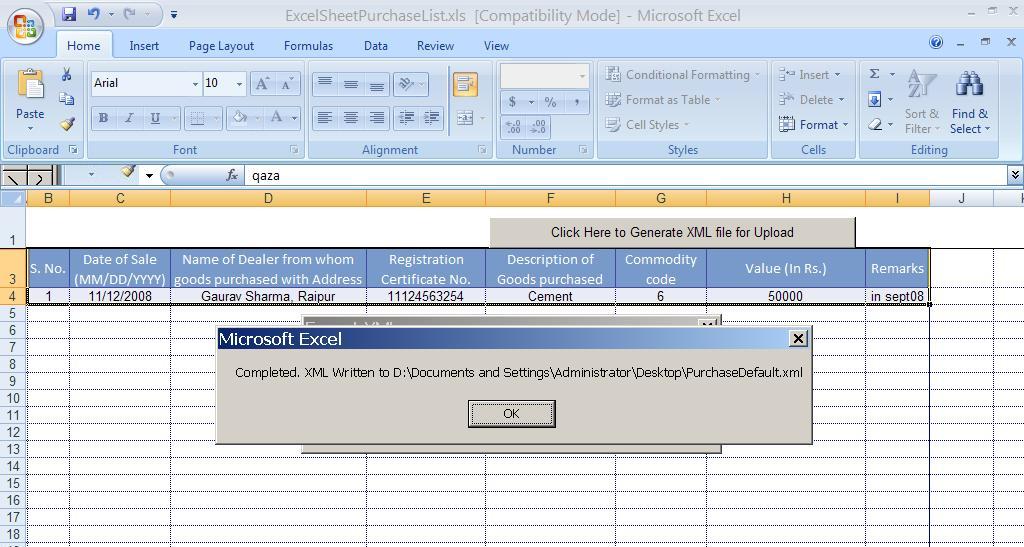
STEP 8:To Generate XML File to upload, Click On button "Click Here to Generate XML file for Upload". Before Click this button make sure your selected cell is not one from filled cells. On click to Button "Click Here to Generate XML file for Upload".
A Popup Window will appear. Click on "Generate XML File" button.

STEP 9:Click on "Generate XML File", a Popup Message show you that XML file has been generated and show you the path where it is saved on your computer.
STEP 10:Go to Annual Return Browse Page, Click on Upload File link in Sale/Purchase List Column.Now use this XML file to upload.