

1: Do the Minimal Entry for return. See More about Minimal Entry CLICK HERE
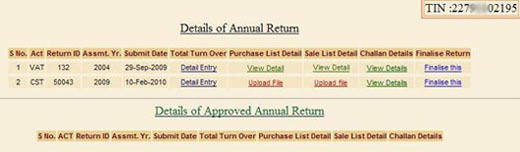
2: When you take mouse pointer over this button two more button will appear,click on "Annual Return" Button in SideBar. Browse Annual Return page will Open.
-:Image-1:-
3: See the " Total Turn Over" Column ,In this Column Select the row for which you filed the return, returns are arranged in sorted order of Financial Year. So you can easily find your return for witch you made the minimal Entry. Click the "Detail Entry" Link in your row for corresponding return you will navigate to Form to fill detail enrty. See above image.
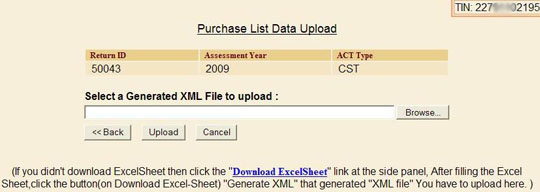
4:Now to upload the Purchase List.See above Image-1, See under "Purchase List Detail" Column. Click the link "Upload File ".You navigate to "Purchase List Data Upload" Page. Browse your xml file of Purchase List fron the system you saved the xml of Purchase List. After browse xml Purchase file, click Upload Button. See image below.See More about How to fill Sales/Purchase List and generate XML? CLICK HERE
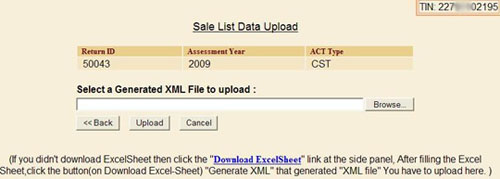
5:Now to upload the Sale List.See above Image-1, See under "Sale List Detail" Column. Click the link "Upload File ".You navigate to "Sale List Data Upload" Page. Browse your xml file of Sale List fron the system you saved the xml of Sale List. After browse xml Sale file, click Upload Button. See image below.See More about How to fill Sales/Purchase List and generate XML? CLICK HERE
6:Now to fill Challan Details.See above Image, See under "Challan Details" Column. Click the link "View Details".You navigate to Challan Entry Page. See More about to How to do Challan Entry CLICK HERE
7: After Filling Detail Entry for return and details of challan. User need to finalize Return. CheckList for Finalize Return See CheckList
8: After Finalise your return. Return will go for CTO approval, When Return will approve then it will visible in lower half section "Details of Approved Annual Return" on Browse Page .