
User will see the side panel after he/she logged-in to E-Return without SmartCard application. Let us have a look what to do with what.
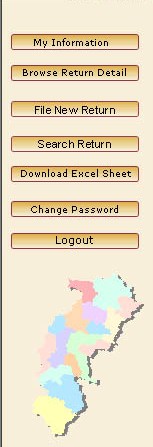
1: "My Information" Button:- By Clicking this button user can see his details and also user can edit his/her information from there.For More about Edit User Information CLICK HERE
2: "Browse Return Detail" Button:- User can see their filled returns details by clicking this button.He can edit their return details, finalise their return too, and also can see status (pending/approved) of returns.By default when user click on "Browse Return Detail" button the Quarterly Return details will open. On take mouse over "Browse Return Detail" Button, two more button visible namely "Browse Annual Return" and "Browse Quarterly Return "Browse Annual Return" Button is for to Browse Annual Returns-view/edit return, finalise them/ upload sales and purchase details / challan details / also see status of your return. "Browse Quarterly Return" Button is for to Browse Quarterly Returns-view/edit return, finalise them/ challan details / also see status of your return.
3: "File New Return" Button:- user can file his returns minimal entry from here. and if he want to fill his Detail Entry later ,it can be done from respective browse button. Further details about filling a return will available in next section.CLICK HERE.
4: "Search Return" Button:- User can search his/her return from here.For more Datail, how to search returns CLICK HERE
5: "Download Excel Sheet" Button:- User can download here the zipped excel sheets for Sales and purchase List. For see how to fill Sales and Purchase List CLICK HERE
6: "Change Password" Button:- User can change his/her password on clicking thsi button.For more Datail about how to change password CLICK HERE
7: "Logout" Button:- User can Logout after finishing his/her work.It is a good habbit that Logout after work for security purpose.For more Datail about Logout CLICK HERE